
UK Yellow Page
Your Essential Digital Toolkit in the United Kingdom
Your Essential Digital Toolkit in the United Kingdom
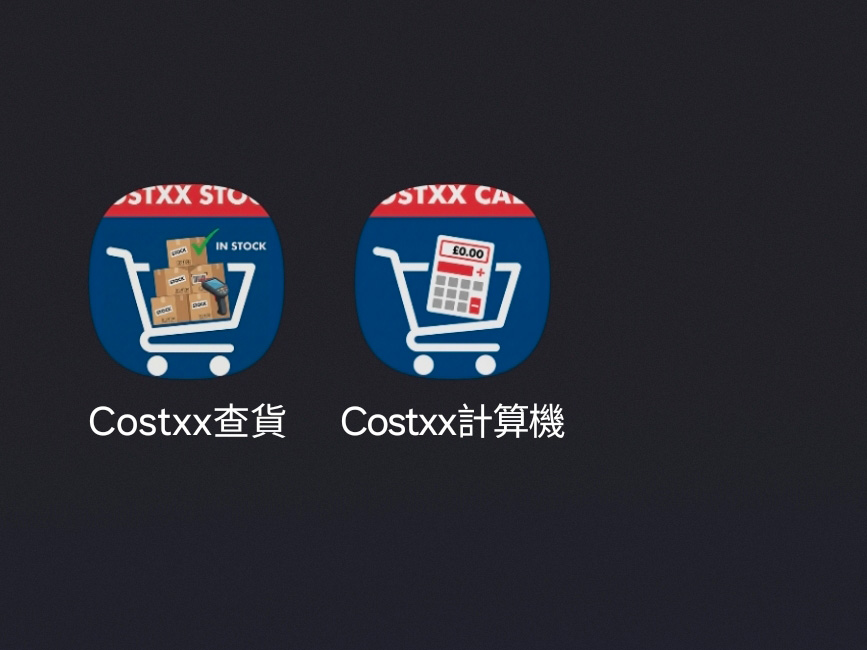
很多網友反映,行 Costxx 現場趕時間,每次都要開瀏覽器搵 Bookmark 實在太慢。其實我們的 Costxx 查貨助手 與 購物助手 採用了 Web App 技術,您可以將它們直接「安裝」到手機主螢幕,用起來就跟一般 App 一樣方便!
1. 使用 Safari 瀏覽器打開工具網址:
• Costxx 查貨助手
• Costxx 購物助手
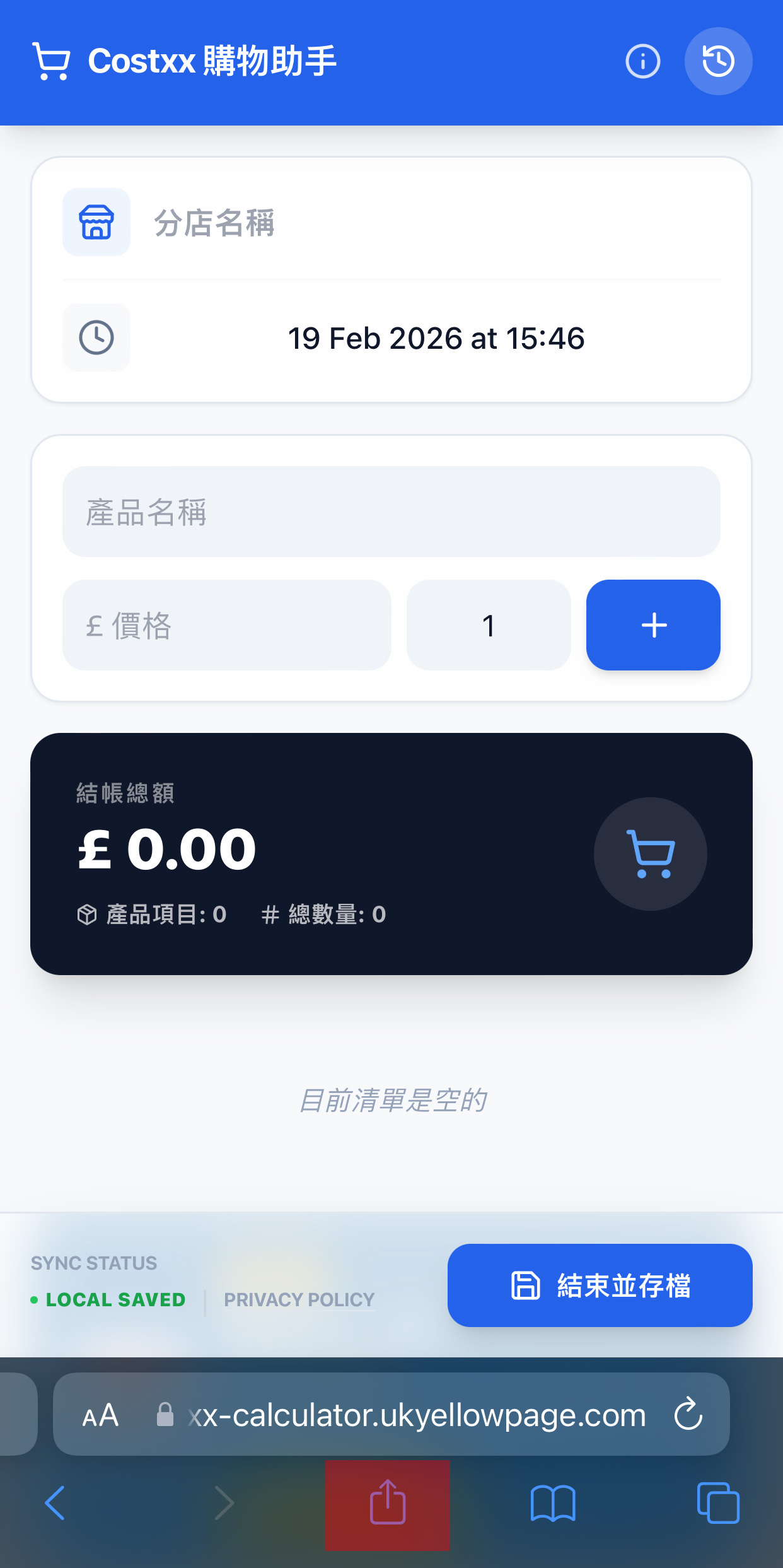
▲ 點擊最底部「分享」圖示
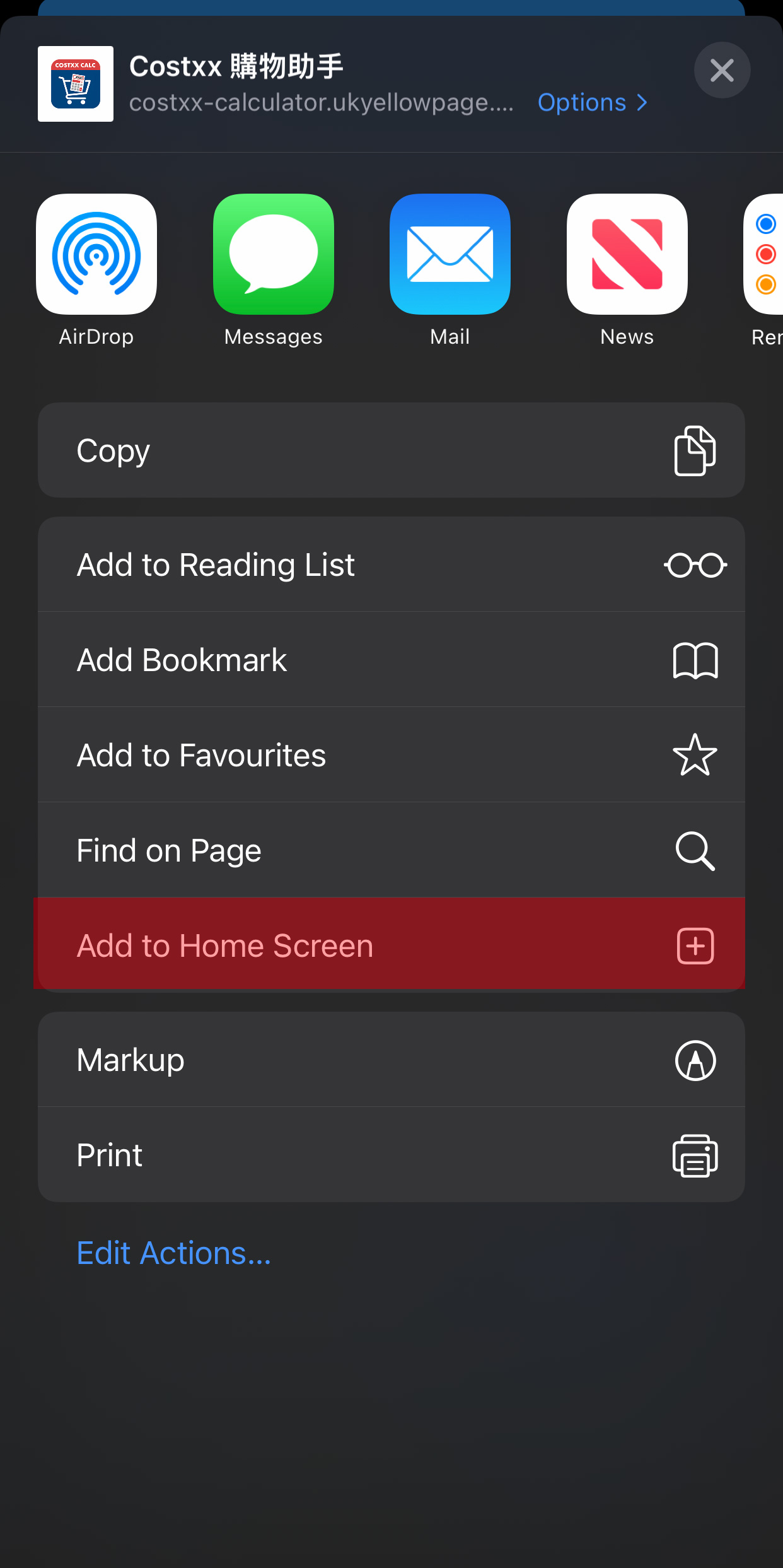
▲ 按「加入主螢幕」(Add to Home Screen)
2. 點擊瀏覽器下方中央的「分享」圖示(向上箭咀的小方塊)。
3. 向上滑動選單,找到並點選「加入主螢幕」(Add to Home Screen)。
4. 點擊右上角的「新增」,圖示就會出現在您的手機桌面啦!
1. 使用 Chrome 瀏覽器打開工具網址:
• Costxx 查貨助手
• Costxx 購物助手
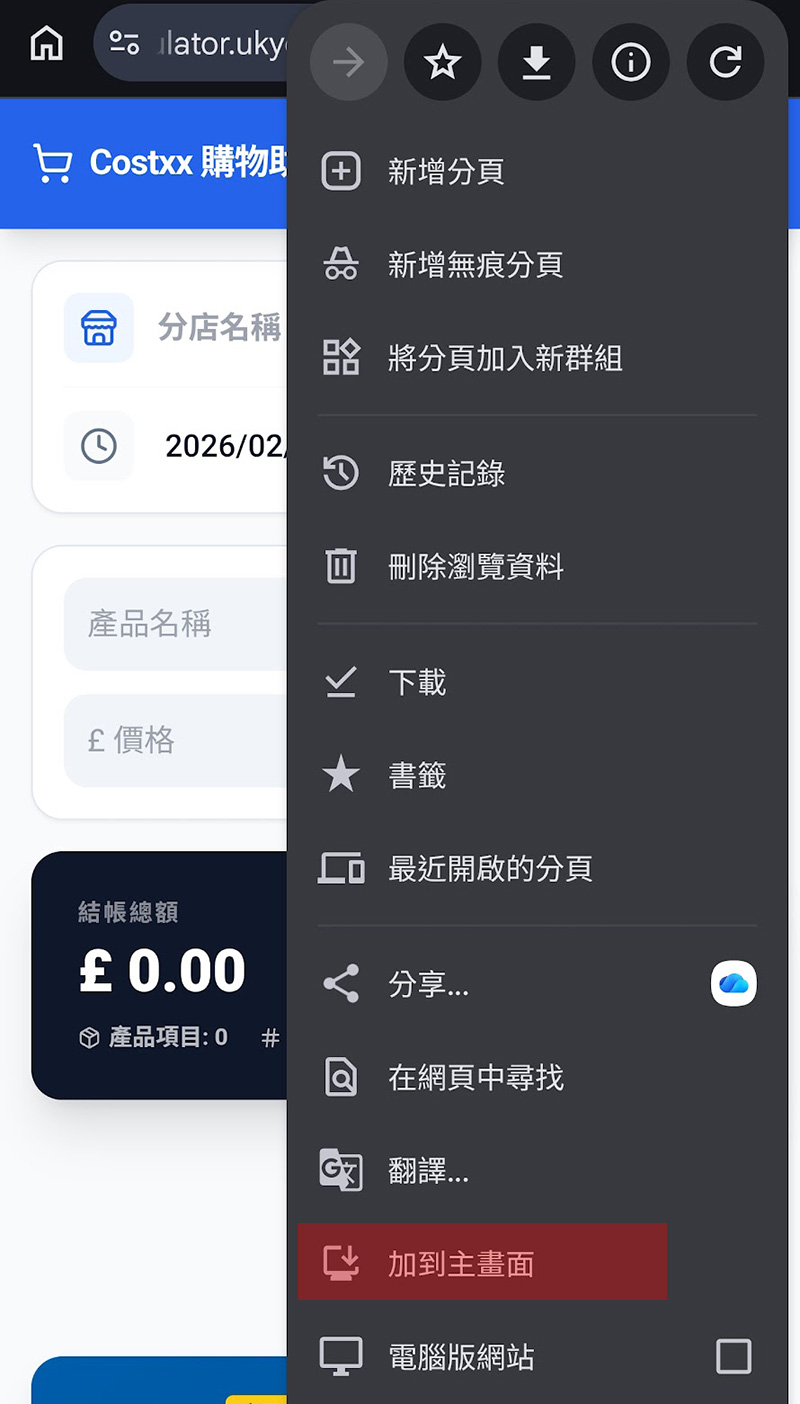
▲ 點擊右上角「⋮」更多選項
選擇「安裝應用程式」或「加入主螢幕」
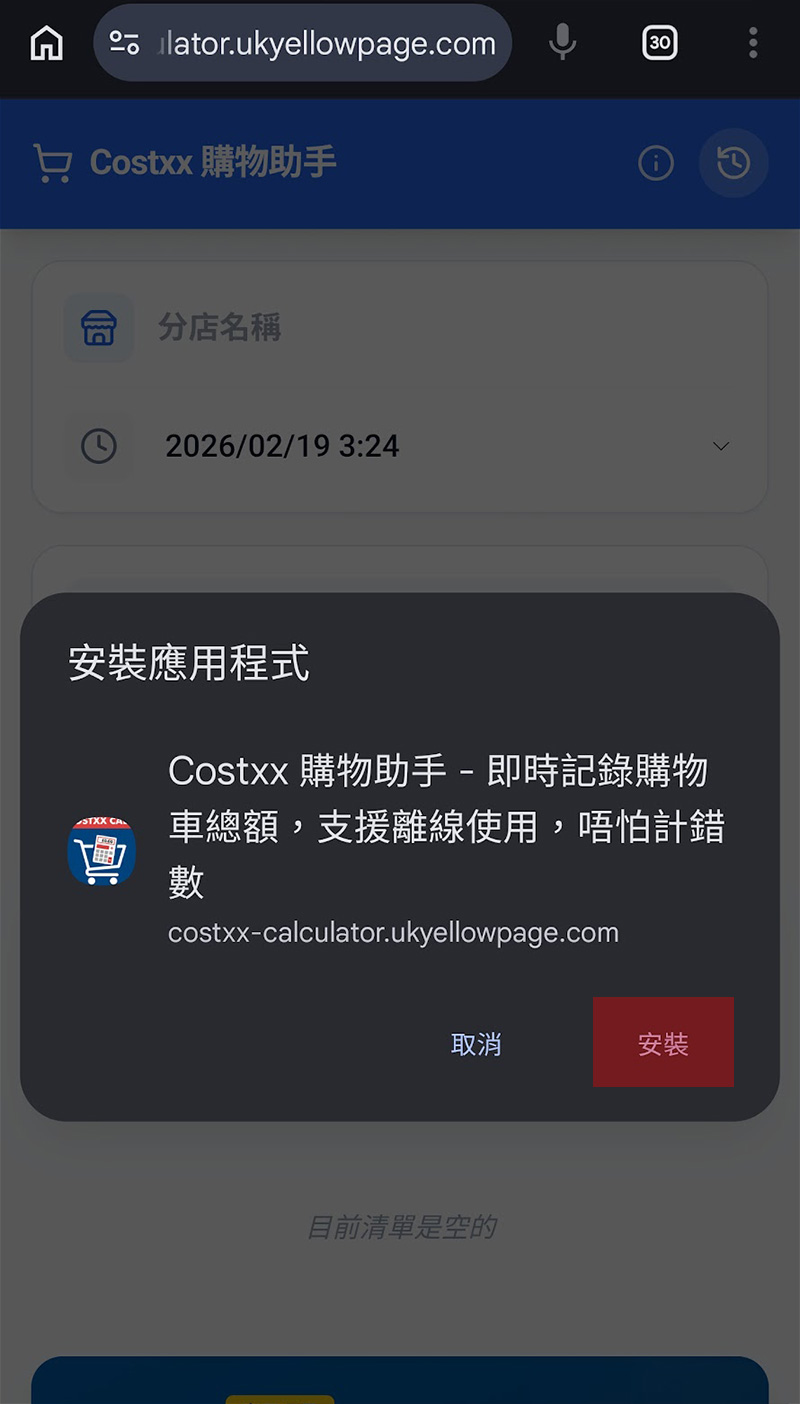
▲ 按「安裝」
2. 點擊網址列右邊的 三個點「⋮」更多選項。
3. 選擇「安裝應用程式」或「加入主螢幕」。
4. 系統會自動生成一個專屬圖示在您的主選單中。
設定好 Home Screen 捷徑後,不論是要即時查詢網友報料的特價貨,還是要在結帳前快速對數,都只需一秒鐘。如果您覺得這兩個工具幫到您,別忘了分享給身邊的移英港人朋友!
如果你覺得這篇文章有用或
工具對您在英生活有幫助,
歡迎請我飲杯咖啡!

Many netizens have mentioned that when they are rushing around Costxx, it's too slow to open the browser and find the bookmark every time. Actually, our Costxx Stock Tracker and Shopping Helper use Web App technology. You can "install" them directly to your phone's home screen, making them just as convenient to use as regular apps!
1. Use the Safari browser to open the tool's URL:
• Costxx Stock Tracker
• Costxx Shopping Helper
▲ Click the "Share" icon at the bottom
▲ Tap "Add to Home Screen"
2. Click the "Share" icon (the square with an upward arrow) in the bottom center of the browser.
3. Scroll up the menu, find and tap "Add to Home Screen".
4. Tap "Add" in the top right corner, and the icon will appear on your phone's home screen!
1. Use the Chrome browser to open the tool's URL:
• Costxx Stock Tracker
• Costxx Shopping Helper
▲ Click the "⋮" more options in the top right
Select "Install app" or "Add to Home screen"
▲ Tap "Install"
2. Click the three dots "⋮" more options on the right side of the address bar.
3. Select "Install app" or "Add to Home screen".
4. The system will automatically generate a dedicated icon on your home screen.
After setting up the Home Screen shortcuts, whether you want to instantly check special offers reported by netizens or quickly tally up your total before checkout, it only takes a second. If you find these two tools helpful, don't forget to share them with your friends in the UK!
If you find this real-life experience useful or
if the tools help your life in the UK,
feel free to buy the editor a coffee! ☕
© 2026 UK Yellow Page. All rights reserved.
Disclaimer: The tools on this website are independently developed for personal assistance. We are not officially affiliated, authorized, or associated with any companies mentioned.
免責聲明: 本網站的工具為獨立開發之個人輔助工具。我們與任何公司無任何官方關聯、授權或合作關係。